Skip to content
  • Services
  • About
  • Pricing
  • Byte Back
  • Help Centre
  • Contact
Book an appointment
Remote support

HDD vs SSD: Which is the best choice for your computer?
1 April 2026 Adrian Arksey Comments Off on HDD vs SSD: Which is the best choice for your computer?

If you want to speed up a sluggish PC, you have likely heard the terms HDD and SSD. But what is the actual difference between these two types of storage, and why does it matter for your home computer? Understanding the HDD vs SSD debate is the primary step toward owning a faster, more reliable machine.

What is a traditional HDD?

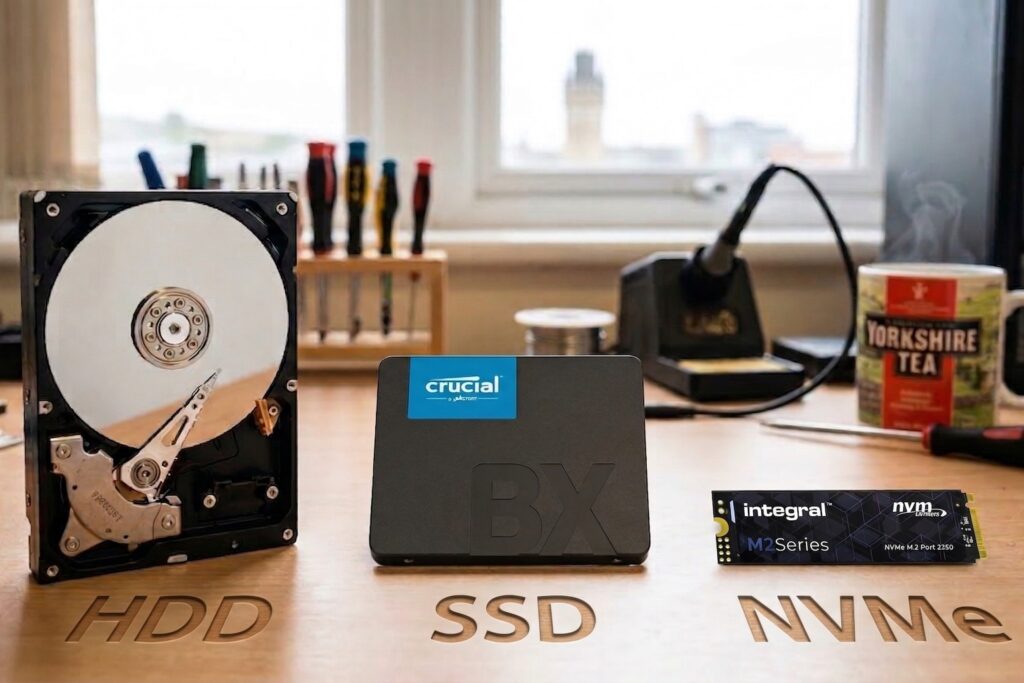
A Hard Disk Drive (HDD) represents the “traditional” way computers store data. Inside the casing, you will find a rapidly spinning magnetic platter and a small mechanical arm that reads and writes information – much like a high-tech version of a vintage record player.

  • The Pros: They generally offer cheaper storage if you need a massive amount of space (several terabytes) for large video collections or system backups.

  • The Cons: Because they rely on moving parts, they are slower, noisier, and prone to physical failure. In fact, if you suspect your current hard disk is struggling, you should read my guide on the five signs your hard drive is failing before you lose any data.

What is a modern SSD?

A Solid State Drive (SSD) uses flash memory – the same technology found in USB thumb drives and smartphones. Crucially, a solid state drive contains no moving parts at all. When comparing HDDs and SSDs, this lack of movement is the “secret sauce” that makes your computer feel instantaneous.

  • The Pros: They are incredibly fast. An SSD upgrade allows your computer to boot up in seconds. They are also silent, run cooler, and handle the knocks and bumps of daily life much better than old-fashioned mechanical drives.

  • The Cons: While prices have dropped, they remain slightly more expensive per gigabyte than traditional disks. However, most users find the HDD vs SSD price difference well worth it for the performance boost.

Taking it further: SATA SSD vs NVMe

Not all solid state storage is the same. When I upgrade a customer’s PC, I usually choose between two types of SSD technology depending on the age of their machine:

  1. SATA SSD: These are roughly the size of a pack of playing cards and fit into the same slot as an old hard drive. They provide a massive speed increase over any HDD.

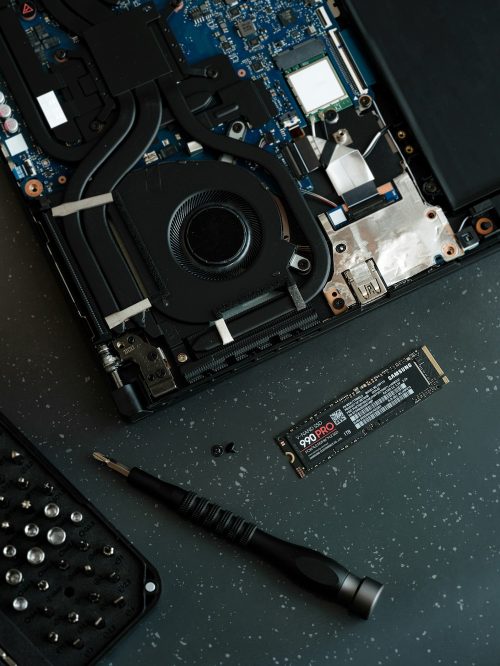
  2. NVMe (M.2) SSD: These look like a small stick of chewing gum. They plug directly into the computer’s motherboard and are up to five times faster than a standard SATA SSD. If your computer supports NVMe, it represents the absolute gold standard for performance in 2026.

Why the HDD vs SSD choice matters for you

For the average home user in the UK, the speed difference is the most noticeable factor. When you move from HDD to SSD technology, Windows feels “snappy” again. Your web browser opens the moment you click it, and you won’t have to wait for your holiday photos to load one by one.

Furthermore, because a solid state drive lacks a mechanical arm, it doesn’t suffer from the “clicking” failures common in old hard drives. This SSD upgrade effectively removes the most fragile part of your computer, making your data much safer in the long run.

Can you upgrade an old computer?

Many of my clients believe they need a brand-new laptop when their current one becomes slow. In reality, I can often remove your old, struggling HDD and replace it with a modern, high-capacity SSD. When deciding between HDD and SSD, the upgrade is almost always the better financial choice. I move all your files and Windows settings across so that everything looks exactly the same – only much faster. It is a brilliant way to save money while enjoying a “new computer” experience.

Need a speed boost?

If your computer feels like it’s stuck in low gear, an SSD upgrade could be the answer you’re looking for. I specialise in helping local residents breathe new life into their existing equipment. If you live in my service area, I can handle the entire SSD installation process for you. I ensure your precious photos and documents stay safe during the transition from your old HDD. Contact me today for a friendly chat about how we can make your PC fast again.
Photograph of a laptop undergoing a hard drive upgrade

FAQs

Is an NVMe SSD better than a standard SATA SSD?

Yes, significantly. While both are much faster than an old hard drive, an NVMe SSD plugs directly into the motherboard and offers much higher data transfer speeds. If your computer is relatively modern, an NVMe is the best choice for maximum performance.

Does the HDD vs SSD choice affect battery life in laptops?

Absolutely. Because an SSD has no motors to spin and no moving parts to power, it uses much less energy. Upgrading to an SSD can often give an older laptop an extra 30 to 60 minutes of battery life.

Can I use an SSD as an external backup drive?

Yes, and it is a very wise move. External SSDs are much more durable than external HDDs. If you accidentally knock an external SSD off your desk while it is working, your data will likely survive, whereas a traditional drive would probably fail.

Why are HDDs still sold if SSDs are better?

HDDs still offer the lowest price for massive amounts of storage. They are perfect for "cold storage" - files like old movies or massive archives that you want to keep but don't need to access quickly or frequently.

How do I know if my computer can take an NVMe SSD?

This depends on your computer's motherboard. Most laptops and PCs built in the last five years have a special "M.2" slot for NVMe. I can advise on this at the time I do an upgrade for you.

Is it worth upgrading an older computer to an SSD?

Often, yes! Even an older computer sees a massive performance jump when you remove the HDD bottleneck. If the rest of the computer is in good physical condition, an SSD upgrade is the most cost-effective way to get a few more years of use out of it.

Post navigation

Previous
Next

Recent posts

  • Check who has been signing into your email account
  • Closed a browser tab by accident? Reopen it instantly
  • Microsoft Publisher is closing down: what you need to do before October 2026
  • Restart or Shut Down? They aren’t always the same
  • A pop-up says your computer has a virus? Don’t call the number!

Related articles

A picture of a laptop doing a Windows update

Windows 10 support has ended: is your PC still safe in 2026?

24 March 2026 Adrian Arksey Comments Off on Windows 10 support has ended: is your PC still safe in 2026?

The official Windows 10 end of support date passed on 14th October 2025. Many of my local clients still use this system for banking, shopping, and staying in touch. However, we are now in 2026, and using an unsupported computer carries real risks. Your computer will still turn on today. You can still open your […]

Failing hard drive: five signs your computer is in trouble

17 October 2025 Adrian Arksey Comments Off on Failing hard drive: five signs your computer is in trouble

Your computer’s hard drive works quietly in the background, storing everything from precious family photos to important financial documents. However, like any mechanical or electronic part, it has a limited lifespan. Recognising a failing hard drive early is the best way to ensure you don’t lose your digital life. If you know the warning signs, […]

How to check your broadband speed, understand the results, and fix common slowdowns

6 October 2025 Adrian Arksey Comments Off on How to check your broadband speed, understand the results, and fix common slowdowns

If your internet sometimes feels slow – perhaps a film keeps buffering, websites take longer than usual to load, or emails seem to hang when you try to send them – it’s a good idea to check your broadband speed. Doing so can quickly reveal whether your connection is running as expected or if there’s […]

Sign up to my newsletter

Useful tips, news and occasional offers, delivered to your inbox once or twice a month. I promise not to spam you!

Thank you!

You have successfully joined my subscriber list.

Stress-free tech support in the comfort of your home or office.

Serving Sheffield, Dronfield, Chesterfield, Hope Valley, Bakewell, and nearby towns and villages.

0333 900 6000

Business Hours
  • Weekdays: 9am to 5pm
  • Weekends: Closed
  • Bank Holidays: Closed
Help & Support
  • About
  • Pricing
  • Byte Back
  • FAQs
  • Software Support
  • Contact
  • Book an Appointment
  • Remote Support
Services
  • Computer Support
  • Phone & Tablet Support
  • Internet & Email Support
  • Data & Security Support
  • Smart Home Support
  • Learning & Advice
Copyright © 2004 – 2026 Restart. All rights reserved.