
Microsoft Publisher is closing down: what you need to do before October 2026
Microsoft Publisher has been around for more than 30 years. During that time, it has helped people create everything from newsletters and leaflets to business cards, labels, posters and invitations.
However, Microsoft has now announced that Publisher will reach the end of its life in October 2026. If you still use it – or have old Publisher documents saved on your computer – there are a few things you need to do before then.
The good news is that there is no need to panic. Publisher will continue working for the time being, and there are several suitable alternatives available. The important thing is to prepare your files now, rather than discovering later that you can no longer open them.
What is happening to Microsoft Publisher?
Microsoft Publisher is being retired in October 2026. It will no longer be included with Microsoft 365 and Microsoft will stop supporting the versions supplied with its traditional Office packages.
If you receive Publisher through a Microsoft 365 subscription, you can continue using it normally until 1 October 2026. After that date, Microsoft says subscribers will no longer have access to Publisher or be able to use it to open and edit Publisher files.
Support for the perpetual version of Publisher 2021 – the version bought as part of Office 2021 rather than through a subscription – ends on 13 October 2026. People with this version may still be able to install and use it afterwards, but it will no longer receive support from Microsoft.
In other words, Publisher is not suddenly disappearing from your computer today. You have time to prepare, but it is worth doing something about it well before the deadline.
Why is Microsoft getting rid of Publisher?
Publisher was first released in 1991, when producing a professional-looking leaflet, newsletter or poster on a home computer was a fairly specialised job.Perfect.
Technology has changed considerably since then. Many of the things people once needed Publisher for can now be done in Word, PowerPoint and online design services such as Canva. Microsoft also offers a large collection of ready-made templates through Microsoft Create.
Microsoft says it occasionally retires older products so that it can concentrate on newer features and services. Publisher has also received relatively little attention in recent years and has never been available on Apple Mac computers.
That will not make its retirement any less frustrating for people who have used it for years. Publisher is familiar, comparatively straightforward and particularly useful when you want to position text and pictures precisely on a printed page.
Unfortunately, Microsoft has not announced a direct replacement that will open every Publisher document and preserve it perfectly. This is why existing files need some attention before the software disappears.

What will happen to my Publisher files?
Publisher documents normally have .pub at the end of their filename. The documents themselves will not be deleted when Publisher is retired, but you may no longer have a program capable of opening them.
This is the most important part of Microsoft’s announcement. If you have Publisher through Microsoft 365, you should not assume that you will always be able to return to an old file simply because it is safely stored on your computer, OneDrive or a backup drive.
Microsoft recommends converting important Publisher documents into another format before 1 October 2026.
Start by searching your computer, OneDrive and any external storage for files ending in .pub. Remember to look through old work folders and backups as well as your current Documents folder. A leaflet or form you have not used for several years might suddenly become important again.
Once you have found your Publisher files, decide whether each document only needs to be kept for reference or whether you may need to edit and reuse it in the future.
Save important documents as PDFs
If you only need to view, print or keep a copy of a publication, saving it as a PDF is normally the best option.
PDF files can be opened on almost any modern computer, tablet or phone. They are also designed to preserve the appearance of a page, so your fonts, photographs and layout should remain much closer to the original Publisher document.
To create a PDF, open the document in Publisher, select File, choose Save As, and then select PDF as the file type.
Keep the original .pub file as well as the new PDF. The original may still be useful if you later find a suitable conversion service, but the PDF gives you a dependable copy that can be opened without Publisher.
After saving it, open the PDF and check every page. Make sure nothing is missing, text has not moved and the document still prints at the correct size. This is especially important for folded leaflets, labels and anything intended for professional printing.
What if I need to edit the document again?
PDF is excellent for preserving a finished document, but it is not ideal if you regularly change names, dates, prices or photographs.
Microsoft suggests opening the PDF in Word, which will attempt to turn it into an editable Word document. This may work reasonably well for publications that mainly contain ordinary text. However, Word warns that the converted version may not look exactly like the original, particularly when the page contains lots of text boxes, columns, graphics or carefully positioned objects.
For an important document that you expect to use again, the most reliable solution may be to recreate it in whichever program you plan to use in the future.
That involves a little more work now, but it gives you a clean, editable master copy rather than a converted file with unpredictable spacing and formatting.
If you have dozens or hundreds of Publisher files, Microsoft has provided an example PowerShell script that can convert them in bulk. This is aimed at confident or professional computer users and still requires a working, licensed copy of Publisher. It is not something I would recommend experimenting with unless you understand what the script is doing and have a full backup of your files.
What can I use instead of Microsoft Publisher?
There is no single answer that will suit everybody. The best replacement depends on what you create, how often you use it and whether you work mainly with printed documents or online graphics.
Microsoft Word
Word is likely to be the easiest starting point if you already subscribe to Microsoft 365.
It is well suited to letters, forms, invoices, address labels, envelopes and straightforward newsletters. Microsoft provides templates for many of these jobs, so you do not always need to begin with a blank page.
Word is less flexible than Publisher when you want to move lots of separate text boxes and pictures freely around a page. It can produce leaflets and posters, but complex layouts sometimes require patience.
Microsoft PowerPoint
PowerPoint might sound like an odd replacement for Publisher, but it is surprisingly useful for creating posters, signs, banners, certificates and simple leaflets.
Unlike Word, PowerPoint allows you to position text, shapes and pictures freely on the page. You can also change the slide size to match the paper you intend to use.
It is not the natural choice for long, text-heavy publications, but it can be a good option for one-page designs.
Canva
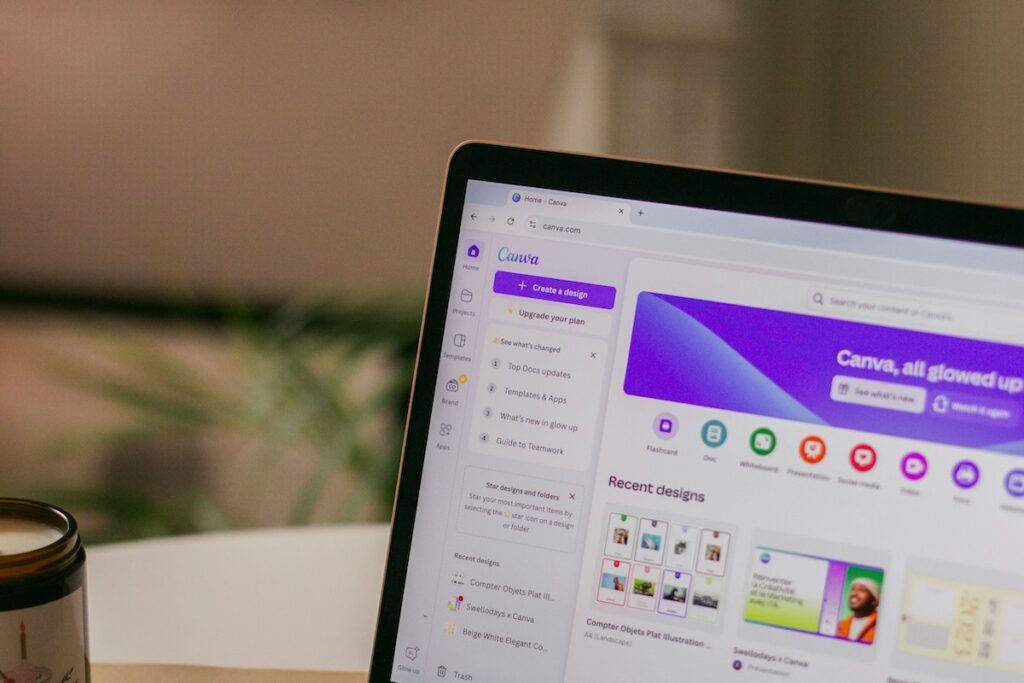
Canva is likely to be one of the most appealing Publisher alternatives for home users, community groups and small businesses.
It runs through a web browser and uses a simple drag-and-drop approach. You can choose from templates for leaflets, posters, business cards, invitations, menus, social media graphics and many other common projects. You then replace the example wording and pictures with your own.
Canva is designed for people who are not professional graphic designers, so it is generally easier to produce an attractive result without starting from scratch. Finished designs can be downloaded as PDF files for printing or as images for websites, email and social media.
A free version is available, although some templates, photographs and features require a paid plan. Because it is an online service, you will normally need an internet connection and a Canva account. You should also consider whether you are comfortable uploading any photographs, logos or other material used in your designs.
One important point is that Canva does not provide a perfect, one-click conversion of every Publisher document. You may need to upload elements from your old publication or rebuild the design using the PDF as a visual guide.
Adobe Express
Adobe Express takes a similar approach to Canva. It provides editable templates and drag-and-drop tools for creating leaflets, posters, cards and online graphics.
There is a free level as well as paid features. It is worth trying both Canva and Adobe Express with a simple project before deciding which one feels more comfortable.
Scribus
Scribus is a free desktop-publishing program intended for more detailed page design. It offers greater control than Word and is closer in purpose to traditional publishing software.
However, it has a steeper learning curve than Publisher or Canva. It may suit experienced users who regularly create complex printed material, but it is probably more than most occasional users need.
What should I do now?
You do not need to abandon Publisher immediately, but you should start preparing while you can still open your existing documents.
A sensible plan is to:
Find all the
.pubfiles stored on your computer, OneDrive and backup drives.Delete unwanted duplicates, but keep anything you might reasonably need again.
Save important finished publications as PDFs.
Check every converted PDF to make sure it looks and prints correctly.
Identify documents you will need to edit in the future.
Recreate regularly used documents in Word, PowerPoint, Canva or another suitable program.
Keep a secure backup of both the original and converted files.
Do not leave this until the final week of September 2026. Converting a handful of documents is easy, but checking years of newsletters, labels, leaflets and business material can take much longer than expected.
It is also worth learning your chosen replacement now. That gives you time to try a few test projects without the pressure of needing to produce something urgently.
Do I need to buy a new program?
Not necessarily.
If you already have Microsoft 365, Word and PowerPoint may cover everything you previously made in Publisher. Canva and Adobe Express both provide free options, although their paid plans include additional templates and features.
The best choice is not automatically the program with the longest list of features. For most people, it is the one they feel comfortable using and that can produce the documents they actually need.
Try creating one genuine project – a poster, newsletter or business card – in your preferred alternative. You will soon discover whether the program feels natural or turns a simple job into a struggle.
Do not forget your backups
Converting files is only part of the job. Make sure the new versions are included in your normal backup.
Ideally, you should have more than one copy of important documents, with at least one copy stored somewhere separate from your computer. Simply leaving the original Publisher file and its replacement PDF in the same folder will not protect either of them if the computer or drive fails.
Clear filenames will also help. A name such as Village Newsletter - March 2024.pdf is much more useful than Publication6-final-new.pdf, especially when you return to it several years later.
Need help preparing for the end of Publisher?
Microsoft Publisher’s retirement does not need to become a last-minute emergency. There is still time to find your documents, preserve the ones that matter and choose a suitable replacement.
If you are unsure where your Publisher files are stored, need help converting a large collection or would like some patient guidance with Word, PowerPoint or Canva, I can help.
I can check what you have, explain the available options in plain English and help you move to something that suits the way you work – without unnecessary jargon or confusion.
The key is simply to start before October 2026.